I've collected all my useful bash noscripts and command aliases into one CLI, but I want more!
https://github.com/Dark-Alex-17/dtools
https://redd.it/1p5wd31
@r_bash
https://github.com/Dark-Alex-17/dtools
https://redd.it/1p5wd31
@r_bash
GitHub
GitHub - Dark-Alex-17/dtools: All-in-one CLI for your command line tasks: cloud management (AWS/GCP), databases, AI tools, plotting…
All-in-one CLI for your command line tasks: cloud management (AWS/GCP), databases, AI tools, plotting, system maintenance, and more. - Dark-Alex-17/dtools
Fish like ghost completion for bash
Hi Guys,
I tried to implement fish like autocompletion suggestion for bash but I overrides the current prompt. I am trying to make this better. If you have any suggestions please let me know.
https://github.com/h-jangra/Ghost.sh
https://preview.redd.it/zjcryf5ghk3g1.png?width=1053&format=png&auto=webp&s=fbe74f55ffcbd91864ae07c4f14fdefb5a3150e3
https://redd.it/1p733ip
@r_bash
Hi Guys,
I tried to implement fish like autocompletion suggestion for bash but I overrides the current prompt. I am trying to make this better. If you have any suggestions please let me know.
https://github.com/h-jangra/Ghost.sh
https://preview.redd.it/zjcryf5ghk3g1.png?width=1053&format=png&auto=webp&s=fbe74f55ffcbd91864ae07c4f14fdefb5a3150e3
https://redd.it/1p733ip
@r_bash
GitHub
GitHub - h-jangra/Ghost.sh: Ghost text suggestions in bash
Ghost text suggestions in bash. Contribute to h-jangra/Ghost.sh development by creating an account on GitHub.
Run bash in a retro-styled terminal multiplexer with a classic MS-DOS aesthetic
https://www.reddit.com/gallery/1p4ppts
https://redd.it/1p7epbf
@r_bash
https://www.reddit.com/gallery/1p4ppts
https://redd.it/1p7epbf
@r_bash
Reddit
From the Ubuntu community on Reddit: A modern, retro-styled terminal multiplexer with a classic MS-DOS aesthetic
Explore this post and more from the Ubuntu community
How to assign default value to variable and convert to uppercase in 1 line?
I typed this in the browser search box and Google AI said this is supposed to work
VAR=${VAR^^:-DEFAULT_VALUE}
I tried it inside a noscript file (.sh) and in the console and it does not work.
Any ideas on how it can be done? thanks
PS: I'm using bash 5.x
https://redd.it/1p7uof7
@r_bash
I typed this in the browser search box and Google AI said this is supposed to work
VAR=${VAR^^:-DEFAULT_VALUE}
I tried it inside a noscript file (.sh) and in the console and it does not work.
Any ideas on how it can be done? thanks
PS: I'm using bash 5.x
https://redd.it/1p7uof7
@r_bash
Reddit
From the bash community on Reddit
Explore this post and more from the bash community
Bash tool to view Linux group info
I was reading the book "Practical Linux System Administration" and it mentioned the "groupmems" command, and I noticed it's missing on Debian 13. So I wrote a small Bash noscript to view regular group members and improved it over a few days.
It only shows regular group info. It can list groups with no members, it separates users for whom a group is primary from those for whom it’s supplementary, and a few other small features.
I'll add some account sprawl checks to it I guess.
If you think of anything practical that fits the scope, I can add it.
https://github.com/mim-s/gshow
https://redd.it/1p6qjkd
@r_bash
I was reading the book "Practical Linux System Administration" and it mentioned the "groupmems" command, and I noticed it's missing on Debian 13. So I wrote a small Bash noscript to view regular group members and improved it over a few days.
It only shows regular group info. It can list groups with no members, it separates users for whom a group is primary from those for whom it’s supplementary, and a few other small features.
I'll add some account sprawl checks to it I guess.
If you think of anything practical that fits the scope, I can add it.
https://github.com/mim-s/gshow
https://redd.it/1p6qjkd
@r_bash
GitHub
GitHub - mim-s/gshow: Bash tool to view Linux group info
Bash tool to view Linux group info. Contribute to mim-s/gshow development by creating an account on GitHub.
I challenge you to answer this question :)
Which awk command will correctly parse the /proc/1234/smaps file to sum the Pss (Proportional Set Size) memory for all private, clean memory mappings belonging to the process?
A. awk '/^Pss:/ {pss=$2} /Private_Clean/ {sum += pss} END {print sum}' /proc/1234/smaps
B. awk '/^Pss:/ {sum += $2} END {print sum}' /proc/1234/smaps
C. awk '/Private_Clean/ {getline; if ($1=="Pss:") sum+=$2} END {print sum}' /proc/1234/smaps
D. awk 'BEGIN {RS="\\n\\n"} /Private_Clean/ {for(i=1;i<=NF;i++) if($i=="Pss:") {sum+=$(i+1); break}} END {print sum}' /proc/1234/smaps
https://redd.it/1p836c3
@r_bash
Which awk command will correctly parse the /proc/1234/smaps file to sum the Pss (Proportional Set Size) memory for all private, clean memory mappings belonging to the process?
A. awk '/^Pss:/ {pss=$2} /Private_Clean/ {sum += pss} END {print sum}' /proc/1234/smaps
B. awk '/^Pss:/ {sum += $2} END {print sum}' /proc/1234/smaps
C. awk '/Private_Clean/ {getline; if ($1=="Pss:") sum+=$2} END {print sum}' /proc/1234/smaps
D. awk 'BEGIN {RS="\\n\\n"} /Private_Clean/ {for(i=1;i<=NF;i++) if($i=="Pss:") {sum+=$(i+1); break}} END {print sum}' /proc/1234/smaps
https://redd.it/1p836c3
@r_bash
Reddit
From the bash community on Reddit
Explore this post and more from the bash community
Script creating tmux session
Hi, I am finding it difficult to get the desired outcome from the following line in my server start noscript.
tmux new-session -d -s ${TMUX_SESSION} ${SERVER_COMMAND} | tee -a ${LOG}
This starts the server properly in Tmux and I'm able to connect to the session and send commands in other noscripts. My problem is specifically with tee not appending the output of the server command to the log. It seems to be appending the output of the Tmux new-session command (which is nothing).
I've tried putting the server command and tee in ` but I get command too long error.
I've also tried issuing the start command the same way I do the server action commands with tmux send-keys. My server starts and logging is correct, but the tmux session is not persistent so I can't review and I believe my action commands won't run.
Any ideas for nesting this properly?
https://redd.it/1p89exy
@r_bash
Hi, I am finding it difficult to get the desired outcome from the following line in my server start noscript.
tmux new-session -d -s ${TMUX_SESSION} ${SERVER_COMMAND} | tee -a ${LOG}
This starts the server properly in Tmux and I'm able to connect to the session and send commands in other noscripts. My problem is specifically with tee not appending the output of the server command to the log. It seems to be appending the output of the Tmux new-session command (which is nothing).
I've tried putting the server command and tee in ` but I get command too long error.
I've also tried issuing the start command the same way I do the server action commands with tmux send-keys. My server starts and logging is correct, but the tmux session is not persistent so I can't review and I believe my action commands won't run.
Any ideas for nesting this properly?
https://redd.it/1p89exy
@r_bash
Reddit
From the bash community on Reddit
Explore this post and more from the bash community
rshred - An interactive bash noscript for recursive shredding
https://www.github.com/TrollgeEngineering/rshred
Features:
Directory exclusion
Permission checking
Logging
Error counting
Constructive feedback is encouraged :)
https://redd.it/1p87f0r
@r_bash
https://www.github.com/TrollgeEngineering/rshred
Features:
Directory exclusion
Permission checking
Logging
Error counting
Constructive feedback is encouraged :)
https://redd.it/1p87f0r
@r_bash
GitHub
GitHub - TrollgeEngineering/rshred: An interactive bash noscript for recursive shredding.
An interactive bash noscript for recursive shredding. - TrollgeEngineering/rshred
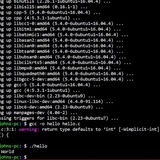
bash: warning: command substitution: ignored null byte in input
i don't even know if it's right to post it here, but I'm having that problem whenever I try to use bash-completion with yay -S ... I don't know what to do. I thought it was Starship so I deleted it, but it kept happening. It's not something that is going to k1ll me, but I would love if anyone could help me.
https://redd.it/1p9t4j3
@r_bash
i don't even know if it's right to post it here, but I'm having that problem whenever I try to use bash-completion with yay -S ... I don't know what to do. I thought it was Starship so I deleted it, but it kept happening. It's not something that is going to k1ll me, but I would love if anyone could help me.
https://redd.it/1p9t4j3
@r_bash
Reddit
From the bash community on Reddit
Explore this post and more from the bash community
Bash Floating Point Arithmetic Builtins-Only
https://github.com/Plankton5544/MASH/tree/main
https://redd.it/1p9vlfr
@r_bash
https://github.com/Plankton5544/MASH/tree/main
https://redd.it/1p9vlfr
@r_bash
GitHub
GitHub - Plankton5544/MASH: BASH builtins only interface for floating point arithmetic operations.
BASH builtins only interface for floating point arithmetic operations. - Plankton5544/MASH
Script to unrar file I right click on?
For some reason Linux Mint's archive manager crashes every time you use the right click "extract here" option for multi-part rar archives and you need to right click the file explorer, open in terminal, and then type "unrar x \*part1.rar" to extract the files.
As there is no way I can find just set unrar x as some kind of setting in archive manager my idea was to write a .sh noscript, place it in "/Applications", and add it to the list of "Open With" programs so now I have a right click option to extract rar files easier. But I can't get the code to work.
#!/bin/bash
if "*part1.rar" do unrar x
Pause -p "Check for errors then press any key to continue"
exit
https://redd.it/1p9vu42
@r_bash
For some reason Linux Mint's archive manager crashes every time you use the right click "extract here" option for multi-part rar archives and you need to right click the file explorer, open in terminal, and then type "unrar x \*part1.rar" to extract the files.
As there is no way I can find just set unrar x as some kind of setting in archive manager my idea was to write a .sh noscript, place it in "/Applications", and add it to the list of "Open With" programs so now I have a right click option to extract rar files easier. But I can't get the code to work.
#!/bin/bash
if "*part1.rar" do unrar x
Pause -p "Check for errors then press any key to continue"
exit
https://redd.it/1p9vu42
@r_bash
Reddit
From the bash community on Reddit
Explore this post and more from the bash community
reloop - A oddly simple utility for devs.
http://github.com/xZepyx/reloop
https://redd.it/1p9tcuh
@r_bash
http://github.com/xZepyx/reloop
https://redd.it/1p9tcuh
@r_bash
GitHub
GitHub - xZepyx/reloop: A simple terminal utility that helps devs run commands (eg. build commands) whenever the specifed file…
A simple terminal utility that helps devs run commands (eg. build commands) whenever the specifed file is changed. - xZepyx/reloop
Amber the programming language compiled to Bash, 0.5.1 release
https://docs.amber-lang.com/getting_started/whats_new
https://redd.it/1pc4lxa
@r_bash
https://docs.amber-lang.com/getting_started/whats_new
https://redd.it/1pc4lxa
@r_bash
Documentation for Amber programming language
Amber Documentation
h - A Bash Help Tool for Aliases, Functions, Keywords, and Commands
---
Title:
Body:
Hi Everyone!
I’ve been working on a tool called
---
Repo:
https://github.com/JB63134/bashh
---
## **Features**
* Analyze **builtins, aliases, keywords, functions, and external commands**
* Shows **where a command is defined** (files, line numbers, or shell)
* Displays **alias expansions** and function contents
* Provides **help output** or points to `man` / `info` pages
* Syntax-highlighted preview for functions and noscripts (`batcat` preferred, fallback to Perl)
* Integrates with **fzf** for interactive command search
* Automatic detection of commonly used **admin paths**
---
## **Usage**
```bash
h [command] # Analyze the given command
h # Analyze your most‑recent command
h -f # Launch interactive search using fzf
h -h | --help # Show usage instructions
h -v | --version # Show version info
```
---
## **Examples**
```bash
05:08:13 Tue Dec 02: ~ $ h exit
╔══════════════════════════════════════════════╗
║ h – Bash Help Tool ║
╚══════════════════════════════════════════════╝
├─ 'exit' is a shell builtin
↳ Showing 'help exit':
exit: exit [n]
Exit the shell.
Exits the shell with a status of N. If N is omitted, the exit status
is that of the last command executed.
05:08:21 Tue Dec 02: ~ $ h then
╔══════════════════════════════════════════════╗
║ h – Bash Help Tool ║
╚══════════════════════════════════════════════╝
├─ Detected BASH Keyword 'then'
↳ then -- Begins the command block for a true condition.
05:08:24 Tue Dec 02: ~ $ h ls
╔══════════════════════════════════════════════╗
║ h – Bash Help Tool ║
╚══════════════════════════════════════════════╝
├─ 'ls' is an alias → resolves to: alias ls='printf "\n" && ls --color=auto'
↳ Defined in: /home/jb/.bashrc (line 96)
05:08:26 Tue Dec 02: ~ $ h cd
╔══════════════════════════════════════════════╗
║ h – Bash Help Tool ║
╚══════════════════════════════════════════════╝
├─ 'cd' is a shell function
↳ Declared in: /home/jb/.bashfunctions (line 28)
↳ Showing function: cd
cd ()
{
builtin cd "${@:-$HOME}" && printf "\n" && ls --color=auto
}
─── End of function 'cd' ───
05:08:28 Tue Dec 02: ~ $ h wallpaper
╔══════════════════════════════════════════════╗
║ h – Bash Help Tool ║
╚══════════════════════════════════════════════╝
├─ 'wallpaper' is an external command
↳ Path: /home/jb/bin/noscripts/wallpaper
↳ Showing noscript 'wallpaper':
───────┬────────────────────────────────────────────────────────────────────────
│ File: /home/jb/bin/noscripts/wallpaper
───────┼────────────────────────────────────────────────────────────────────────
1 │ #!/usr/bin/env bash
2 │ # ------------------------------------------------------------
3 │ # Random Wallpaper Setter
4 │ # ------------------------------------------------------------
5 │ WALLPAPERDIR="$HOME/Pictures/Wallpapers"
6 │
7 │ mkdir -p "$WALLPAPERDIR"
8 │ # --- Pick a random image
9 │ file=$(find "$WALLPAPERDIR" -maxdepth 1 -type f \( -iname "*.jpg" -o -iname "*.jpeg" -o -iname "*.png" -o -iname "*.webp" \) | shuf -n 1)
10 │
11 │ if [[ -z "$file" ]]; then
12 │ printf "No images found in %s\n" "$WALLPAPERDIR"
13 │ exit 1
14 │ fi
15 │
16 │ # Build uri path
17 │ uri="file://$file"
18 │
19 │ # Apply wallpaper
20 │ gsettings set org.gnome.desktop.background picture-uri "$uri"
21 │ gsettings set
---
Title:
h – is a full fledged command resolution engine that unifies help into one shortcut - hBody:
Hi Everyone!
I’ve been working on a tool called
h that helps you understand exactly what a Bash command is doing, whether it’s an alias, function, builtin, keyword, or external command. ---
Repo:
https://github.com/JB63134/bashh
---
## **Features**
* Analyze **builtins, aliases, keywords, functions, and external commands**
* Shows **where a command is defined** (files, line numbers, or shell)
* Displays **alias expansions** and function contents
* Provides **help output** or points to `man` / `info` pages
* Syntax-highlighted preview for functions and noscripts (`batcat` preferred, fallback to Perl)
* Integrates with **fzf** for interactive command search
* Automatic detection of commonly used **admin paths**
---
## **Usage**
```bash
h [command] # Analyze the given command
h # Analyze your most‑recent command
h -f # Launch interactive search using fzf
h -h | --help # Show usage instructions
h -v | --version # Show version info
```
---
## **Examples**
```bash
05:08:13 Tue Dec 02: ~ $ h exit
╔══════════════════════════════════════════════╗
║ h – Bash Help Tool ║
╚══════════════════════════════════════════════╝
├─ 'exit' is a shell builtin
↳ Showing 'help exit':
exit: exit [n]
Exit the shell.
Exits the shell with a status of N. If N is omitted, the exit status
is that of the last command executed.
05:08:21 Tue Dec 02: ~ $ h then
╔══════════════════════════════════════════════╗
║ h – Bash Help Tool ║
╚══════════════════════════════════════════════╝
├─ Detected BASH Keyword 'then'
↳ then -- Begins the command block for a true condition.
05:08:24 Tue Dec 02: ~ $ h ls
╔══════════════════════════════════════════════╗
║ h – Bash Help Tool ║
╚══════════════════════════════════════════════╝
├─ 'ls' is an alias → resolves to: alias ls='printf "\n" && ls --color=auto'
↳ Defined in: /home/jb/.bashrc (line 96)
05:08:26 Tue Dec 02: ~ $ h cd
╔══════════════════════════════════════════════╗
║ h – Bash Help Tool ║
╚══════════════════════════════════════════════╝
├─ 'cd' is a shell function
↳ Declared in: /home/jb/.bashfunctions (line 28)
↳ Showing function: cd
cd ()
{
builtin cd "${@:-$HOME}" && printf "\n" && ls --color=auto
}
─── End of function 'cd' ───
05:08:28 Tue Dec 02: ~ $ h wallpaper
╔══════════════════════════════════════════════╗
║ h – Bash Help Tool ║
╚══════════════════════════════════════════════╝
├─ 'wallpaper' is an external command
↳ Path: /home/jb/bin/noscripts/wallpaper
↳ Showing noscript 'wallpaper':
───────┬────────────────────────────────────────────────────────────────────────
│ File: /home/jb/bin/noscripts/wallpaper
───────┼────────────────────────────────────────────────────────────────────────
1 │ #!/usr/bin/env bash
2 │ # ------------------------------------------------------------
3 │ # Random Wallpaper Setter
4 │ # ------------------------------------------------------------
5 │ WALLPAPERDIR="$HOME/Pictures/Wallpapers"
6 │
7 │ mkdir -p "$WALLPAPERDIR"
8 │ # --- Pick a random image
9 │ file=$(find "$WALLPAPERDIR" -maxdepth 1 -type f \( -iname "*.jpg" -o -iname "*.jpeg" -o -iname "*.png" -o -iname "*.webp" \) | shuf -n 1)
10 │
11 │ if [[ -z "$file" ]]; then
12 │ printf "No images found in %s\n" "$WALLPAPERDIR"
13 │ exit 1
14 │ fi
15 │
16 │ # Build uri path
17 │ uri="file://$file"
18 │
19 │ # Apply wallpaper
20 │ gsettings set org.gnome.desktop.background picture-uri "$uri"
21 │ gsettings set
h - A Bash Help Tool for Aliases, Functions, Keywords, and Commands
---
**Title:**
`h` – is a full fledged command resolution engine that unifies help into one shortcut - h
**Body:**
Hi Everyone!
I’ve been working on a tool called `h` that helps you **understand exactly what a Bash command is doing**, whether it’s an alias, function, builtin, keyword, or external command.
---
**Repo:**
https://github.com/JB63134/bash_h
---
## **Features**
* Analyze **builtins, aliases, keywords, functions, and external commands**
* Shows **where a command is defined** (files, line numbers, or shell)
* Displays **alias expansions** and function contents
* Provides **help output** or points to `man` / `info` pages
* Syntax-highlighted preview for functions and noscripts (`batcat` preferred, fallback to Perl)
* Integrates with **fzf** for interactive command search
* Automatic detection of commonly used **admin paths**
---
## **Usage**
```bash
h [command] # Analyze the given command
h # Analyze your most‑recent command
h -f # Launch interactive search using fzf
h -h | --help # Show usage instructions
h -v | --version # Show version info
```
---
## **Examples**
```bash
05:08:13 Tue Dec 02: ~ $ h exit
╔══════════════════════════════════════════════╗
║ h – Bash Help Tool ║
╚══════════════════════════════════════════════╝
├─ 'exit' is a shell builtin
↳ Showing 'help exit':
exit: exit [n]
Exit the shell.
Exits the shell with a status of N. If N is omitted, the exit status
is that of the last command executed.
05:08:21 Tue Dec 02: ~ $ h then
╔══════════════════════════════════════════════╗
║ h – Bash Help Tool ║
╚══════════════════════════════════════════════╝
├─ Detected BASH Keyword 'then'
↳ then -- Begins the command block for a true condition.
05:08:24 Tue Dec 02: ~ $ h ls
╔══════════════════════════════════════════════╗
║ h – Bash Help Tool ║
╚══════════════════════════════════════════════╝
├─ 'ls' is an alias → resolves to: alias ls='printf "\n" && ls --color=auto'
↳ Defined in: /home/jb/.bashrc (line 96)
05:08:26 Tue Dec 02: ~ $ h cd
╔══════════════════════════════════════════════╗
║ h – Bash Help Tool ║
╚══════════════════════════════════════════════╝
├─ 'cd' is a shell function
↳ Declared in: /home/jb/.bash_functions (line 28)
↳ Showing function: cd
cd ()
{
builtin cd "${@:-$HOME}" && printf "\n" && ls --color=auto
}
─── End of function 'cd' ───
05:08:28 Tue Dec 02: ~ $ h wallpaper
╔══════════════════════════════════════════════╗
║ h – Bash Help Tool ║
╚══════════════════════════════════════════════╝
├─ 'wallpaper' is an external command
↳ Path: /home/jb/bin/noscripts/wallpaper
↳ Showing noscript 'wallpaper':
───────┬────────────────────────────────────────────────────────────────────────
│ File: /home/jb/bin/noscripts/wallpaper
───────┼────────────────────────────────────────────────────────────────────────
1 │ #!/usr/bin/env bash
2 │ # ------------------------------------------------------------
3 │ # Random Wallpaper Setter
4 │ # ------------------------------------------------------------
5 │ WALLPAPER_DIR="$HOME/Pictures/Wallpapers"
6 │
7 │ mkdir -p "$WALLPAPER_DIR"
8 │ # --- Pick a random image
9 │ file=$(find "$WALLPAPER_DIR" -maxdepth 1 -type f \( -iname "*.jpg" -o -iname "*.jpeg" -o -iname "*.png" -o -iname "*.webp" \) | shuf -n 1)
10 │
11 │ if [[ -z "$file" ]]; then
12 │ printf "No images found in %s\n" "$WALLPAPER_DIR"
13 │ exit 1
14 │ fi
15 │
16 │ # Build uri path
17 │ uri="file://$file"
18 │
19 │ # Apply wallpaper
20 │ gsettings set org.gnome.desktop.background picture-uri "$uri"
21 │ gsettings set
---
**Title:**
`h` – is a full fledged command resolution engine that unifies help into one shortcut - h
**Body:**
Hi Everyone!
I’ve been working on a tool called `h` that helps you **understand exactly what a Bash command is doing**, whether it’s an alias, function, builtin, keyword, or external command.
---
**Repo:**
https://github.com/JB63134/bash_h
---
## **Features**
* Analyze **builtins, aliases, keywords, functions, and external commands**
* Shows **where a command is defined** (files, line numbers, or shell)
* Displays **alias expansions** and function contents
* Provides **help output** or points to `man` / `info` pages
* Syntax-highlighted preview for functions and noscripts (`batcat` preferred, fallback to Perl)
* Integrates with **fzf** for interactive command search
* Automatic detection of commonly used **admin paths**
---
## **Usage**
```bash
h [command] # Analyze the given command
h # Analyze your most‑recent command
h -f # Launch interactive search using fzf
h -h | --help # Show usage instructions
h -v | --version # Show version info
```
---
## **Examples**
```bash
05:08:13 Tue Dec 02: ~ $ h exit
╔══════════════════════════════════════════════╗
║ h – Bash Help Tool ║
╚══════════════════════════════════════════════╝
├─ 'exit' is a shell builtin
↳ Showing 'help exit':
exit: exit [n]
Exit the shell.
Exits the shell with a status of N. If N is omitted, the exit status
is that of the last command executed.
05:08:21 Tue Dec 02: ~ $ h then
╔══════════════════════════════════════════════╗
║ h – Bash Help Tool ║
╚══════════════════════════════════════════════╝
├─ Detected BASH Keyword 'then'
↳ then -- Begins the command block for a true condition.
05:08:24 Tue Dec 02: ~ $ h ls
╔══════════════════════════════════════════════╗
║ h – Bash Help Tool ║
╚══════════════════════════════════════════════╝
├─ 'ls' is an alias → resolves to: alias ls='printf "\n" && ls --color=auto'
↳ Defined in: /home/jb/.bashrc (line 96)
05:08:26 Tue Dec 02: ~ $ h cd
╔══════════════════════════════════════════════╗
║ h – Bash Help Tool ║
╚══════════════════════════════════════════════╝
├─ 'cd' is a shell function
↳ Declared in: /home/jb/.bash_functions (line 28)
↳ Showing function: cd
cd ()
{
builtin cd "${@:-$HOME}" && printf "\n" && ls --color=auto
}
─── End of function 'cd' ───
05:08:28 Tue Dec 02: ~ $ h wallpaper
╔══════════════════════════════════════════════╗
║ h – Bash Help Tool ║
╚══════════════════════════════════════════════╝
├─ 'wallpaper' is an external command
↳ Path: /home/jb/bin/noscripts/wallpaper
↳ Showing noscript 'wallpaper':
───────┬────────────────────────────────────────────────────────────────────────
│ File: /home/jb/bin/noscripts/wallpaper
───────┼────────────────────────────────────────────────────────────────────────
1 │ #!/usr/bin/env bash
2 │ # ------------------------------------------------------------
3 │ # Random Wallpaper Setter
4 │ # ------------------------------------------------------------
5 │ WALLPAPER_DIR="$HOME/Pictures/Wallpapers"
6 │
7 │ mkdir -p "$WALLPAPER_DIR"
8 │ # --- Pick a random image
9 │ file=$(find "$WALLPAPER_DIR" -maxdepth 1 -type f \( -iname "*.jpg" -o -iname "*.jpeg" -o -iname "*.png" -o -iname "*.webp" \) | shuf -n 1)
10 │
11 │ if [[ -z "$file" ]]; then
12 │ printf "No images found in %s\n" "$WALLPAPER_DIR"
13 │ exit 1
14 │ fi
15 │
16 │ # Build uri path
17 │ uri="file://$file"
18 │
19 │ # Apply wallpaper
20 │ gsettings set org.gnome.desktop.background picture-uri "$uri"
21 │ gsettings set
GitHub
GitHub - JB63134/bash_h: h - a BASH help tool
h - a BASH help tool. Contribute to JB63134/bash_h development by creating an account on GitHub.